

ボードマネージャーからESP32をインストール

※注意:バージョン2.0.*を選択、3.0.*を選択するとsketchをコンパイルする際にエラーが出ます
GitHubでps5-esp32をダウンロード。zip
GitHub - rodneybakiskan/ps5-esp32: Use a ps5 controller with an esp32
Use a ps5 controller with an esp32. Contribute to rodneybakiskan/ps5-esp32 development by creating an account on GitHub.
github.com
zipファイルを保存して、以下から読み込み
Sketch⇒Include Library⇒Add.ZIP Library…
PS5コントローラーdualsenseのMACアドレスを確認
PCやスマホにbluetooth接続して確認する方法もあります。
下記のコードで表示することも可能です。
#include <Arduino.h>
#include <BluetoothSerial.h>

#if !defined(CONFIG_BT_ENABLED) || !defined(CONFIG_BLUEDROID_ENABLED)
#error Bluetooth is not enabled! Please run `make menuconfig` to and enable it
#endif

#if !defined(CONFIG_BT_SPP_ENABLED)
#error Serial Bluetooth not available or not enabled. It is only available for the ESP32 chip.
#endif

BluetoothSerial SerialBT;

#define BT_DISCOVER_TIME 10000
esp_spp_sec_t sec_mask =
    ESP_SPP_SEC_NONE;  // or ESP_SPP_SEC_ENCRYPT|ESP_SPP_SEC_AUTHENTICATE to
                       // request pincode confirmation
esp_spp_role_t role = ESP_SPP_ROLE_SLAVE;  // or ESP_SPP_ROLE_MASTER

void setup() {
  Serial.begin(115200);
  if (!SerialBT.begin("ESP32test", true)) {
    Serial.println("========== serialBT failed!");
    abort();
  }
  // SerialBT.setPin("1234"); // doesn't seem to change anything
  // SerialBT.enableSSP(); // doesn't seem to change anything
}

void loop() {
  Serial.println("Starting discoverAsync...");
  BTScanResults* btDeviceList =
      SerialBT.getScanResults();  // maybe accessing from different threads!
  if (SerialBT.discoverAsync([](BTAdvertisedDevice* pDevice) {
        // BTAdvertisedDeviceSet*set =
        // reinterpret_cast<BTAdvertisedDeviceSet*>(pDevice);
        // btDeviceList[pDevice->getAddress()] = * set;
        Serial.printf(">>>>>>>>>>>Found a new device asynchronously: %s\n",
                      pDevice->toString().c_str());
      })) {
    delay(BT_DISCOVER_TIME);
    Serial.print("Stopping discoverAsync... ");
    SerialBT.discoverAsyncStop();
    Serial.println("discoverAsync stopped");
    delay(5000);
    if (btDeviceList->getCount() > 0) {
      BTAddress addr;
      int channel = 0;
      Serial.println("Found devices:");
      for (int i = 0; i < btDeviceList->getCount(); i++) {
        BTAdvertisedDevice* device = btDeviceList->getDevice(i);
        Serial.printf(" ----- %s  %s %d\n",
                      device->getAddress().toString().c_str(),
                      device->getName().c_str(), device->getRSSI());
        std::map<int, std::string> channels =
            SerialBT.getChannels(device->getAddress());
        Serial.printf("scanned for services, found %d\n", channels.size());
        for (auto const& entry : channels) {
          Serial.printf("     channel %d (%s)\n", entry.first,
                        entry.second.c_str());
        }
        if (channels.size() > 0) {
          addr = device->getAddress();
          channel = channels.begin()->first;
        }
      }
      if (addr) {
        Serial.printf("connecting to %s - %d\n", addr.toString().c_str(),
                      channel);
        SerialBT.connect(addr, channel, sec_mask, role);
      }
    } else {
      Serial.println("Didn't find any devices");
    }
  } else {
    Serial.println(
        "Error on discoverAsync f.e. not workin after a \"connect\"");
  }
}
上記コードを実行して、Addressを確認します。

ps5ReceiveDataをESP32にダウンロード

Examplesからps5ReceiveDaraを読み込み、ps5.begin(“”)にPS5コントローラーdualsenseのMACアドレスを入力して実行します。
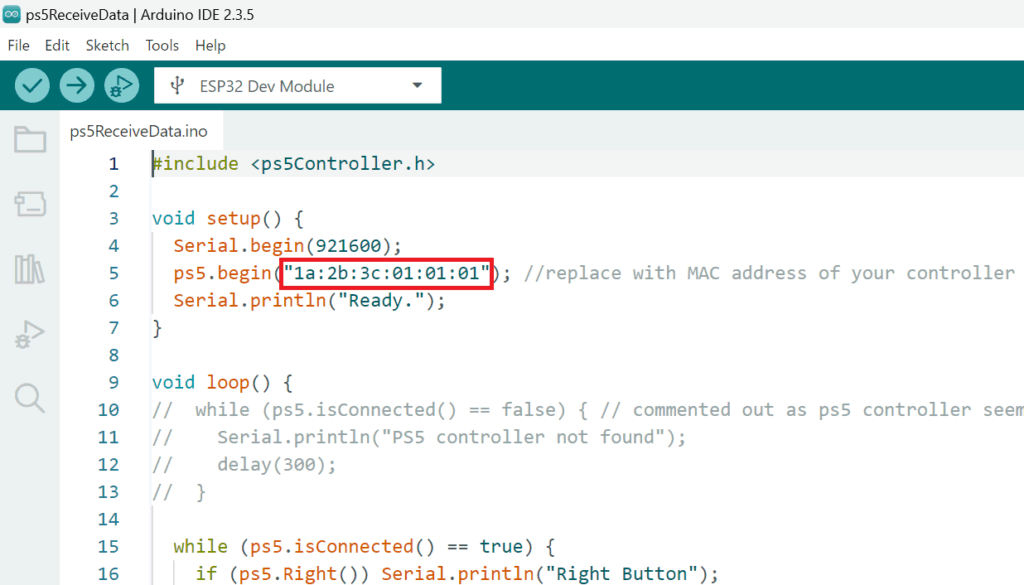
PS5コントローラーとESP32をbluetooth接続
sketchをUpload後、Serial Monitorを表示して、PS5コントローラーを操作すると、押されたボタンに合わせてSerial Monitorに情報が表示されます。



Amazon.co.jp: ESP32-DevKitC-32E 開発ボード : 産業・研究開発用品
Amazon.co.jp: ESP32-DevKitC-32E 開発ボード : 産業・研究開発用品
amzn.to
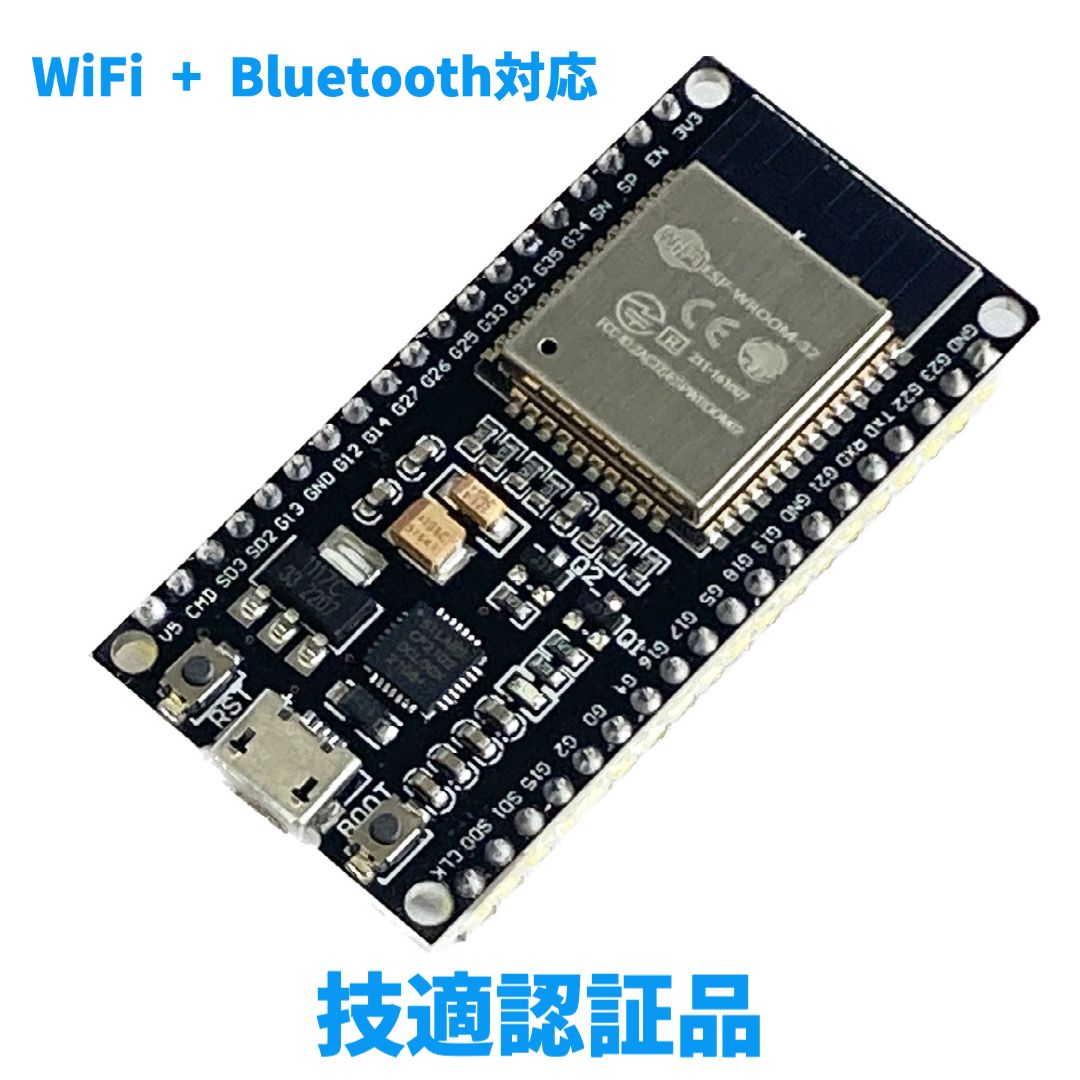
【楽天市場】技適認証品】ESP32 ESP-32S NodeMCU開発ボード2.4GHz WiFi + Bluetoothデュアルモード:Joman
ESP-32S ESP32S ESP32 Raspberry pi Arduino WiFI 開発ボード 技適。技適認証品】ESP32 ESP-32S NodeMCU開発ボード2.4GHz WiFi + Bluetoothデュアルモード
item.rakuten.co.jp

https://amzn.to/43av0D9
amzn.to

コメント